
Budgets vs Actuals
This article will guide you on how to compare budgeted figures against actuals using Translucent. By the end of this tutorial, you'll know how to use this feature effectively to manage your finances.
Group P&L
To view Budgets against actuals, you need to navigate to the 'Ground P&L' section. You can do this through 2 ways: Either you can navigate directly to the 'Group P&L' or you can navigate to the 'Budgets' section.
Step 1: Following the second method, requires you to navigate directly to the budget section. This is located just under the FPA option in the side menu.
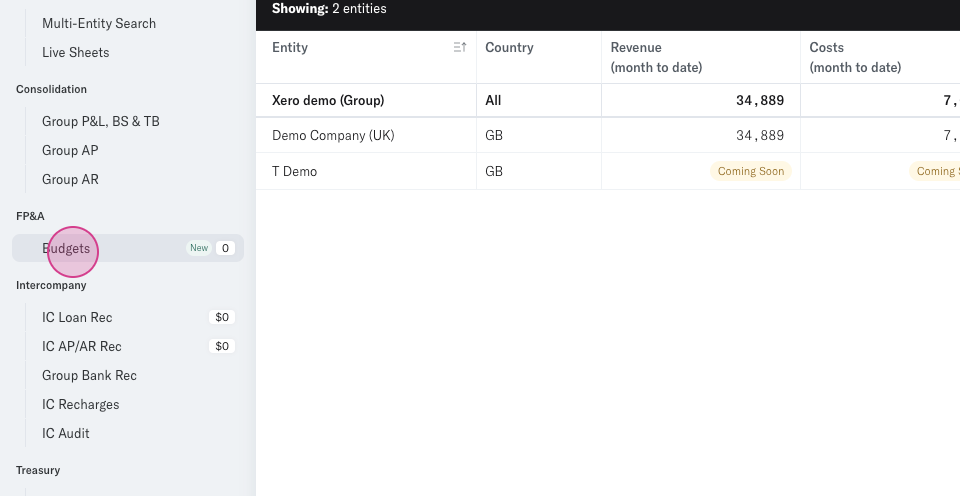
Step 2: In the Budgets tab, you'll see all your budgets that have been automatically synced from Xero or QuickBooks.lick on a budget to preview the budgeted figures.
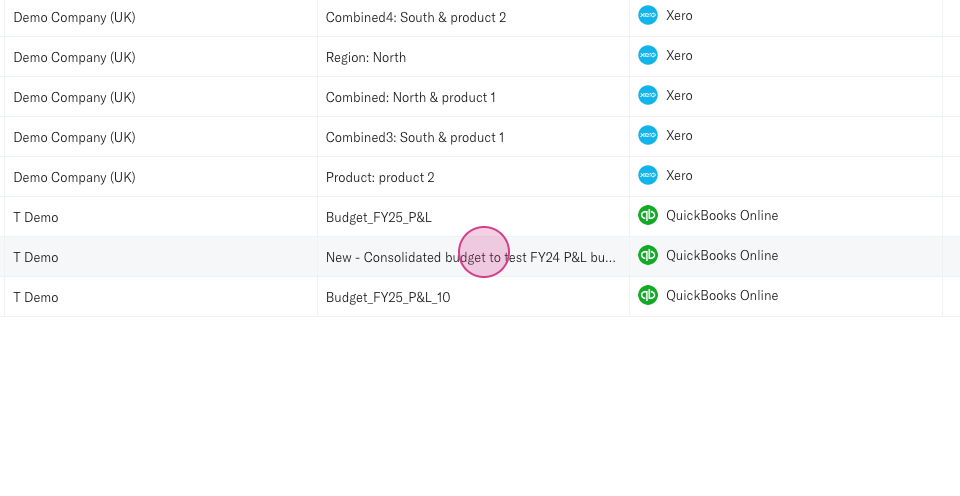
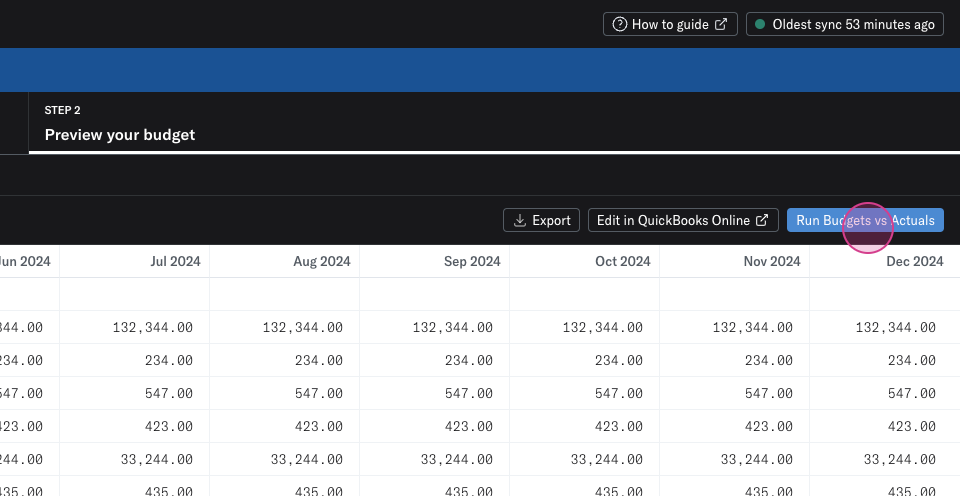
Step 3: When previewing a budget, you can click the 'Run Budgets versus Actuals' button on the top right.
Step 4: You'll be directed to the 'Group P&L' where you can compare your actual figures versus the budgeted figures - based on the start and end date of the selected budget. In the time picker, you can see these start and end dates. Translucent calculates your actual figures using the same time period - matching how the budget is calculated.
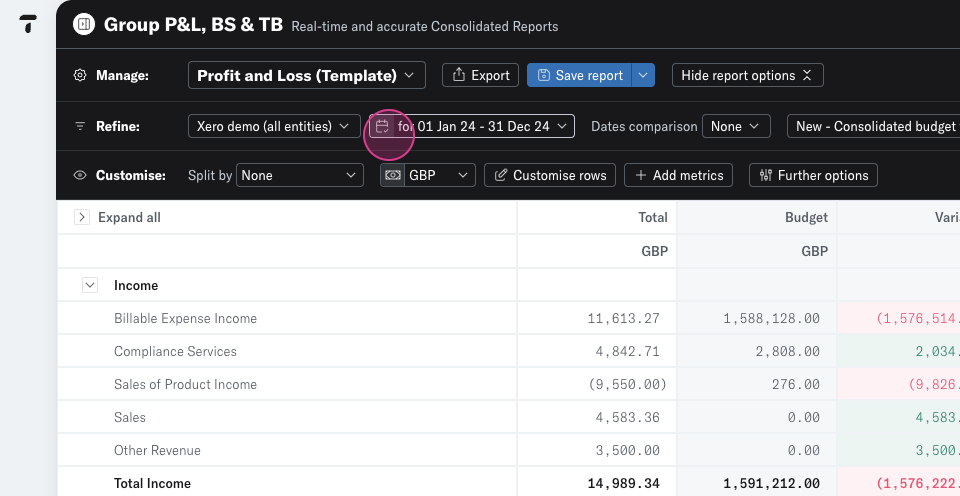
Step 5: When comparing actuals versus budgets, you can see the variance and understand the percentage difference.
Step 6: In the budget picker, you can change which budget to apply against actuals.
Step 7: You also have the option to change your time period - and compare budgets on a monthly or quarterly cadence. Simply click on the time picker and set the period to a month or quarter.
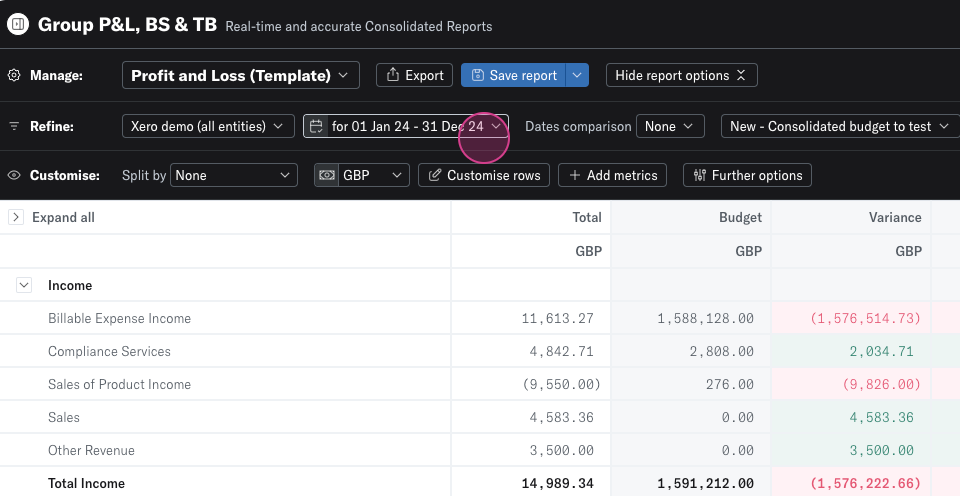
Step 8: After adjusting the time period, you can then click the Dates comparison option, and select the periods over which you want to compare.
Step 9: Click apply. The Group P&L is updated to show the Actual versus Budgets fro the period set, and all the comparative periods selected.