Set Up: Group Bank Reconciliation
Follow the steps to install and start matching cross group bank transactions.
Matching invoices across the group
Once installed use the Group Bank Reconciliation plugin to easily match invoices with payments across the group.
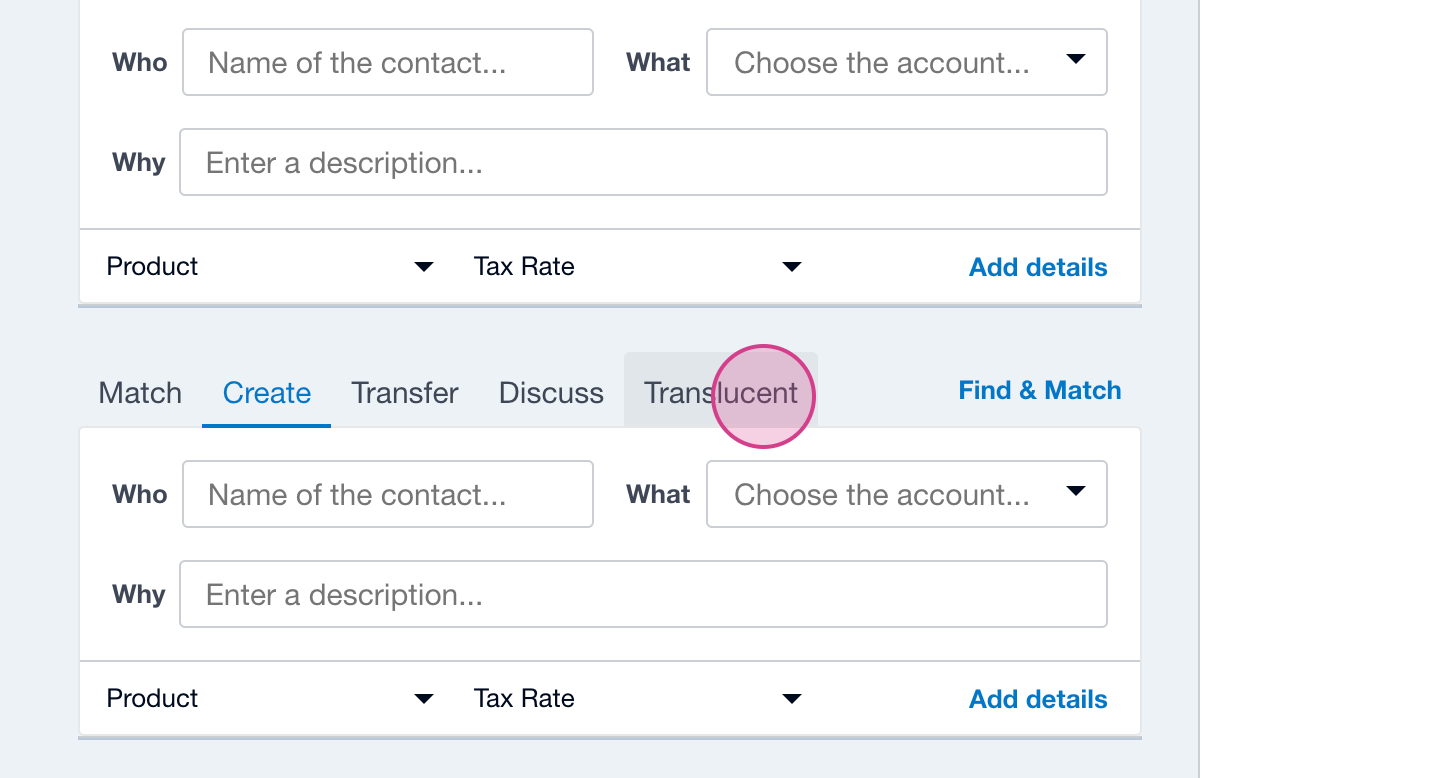
Step 1: Navigate to the Bank reconciliation screen in Xero and select the newly added Translucent action.
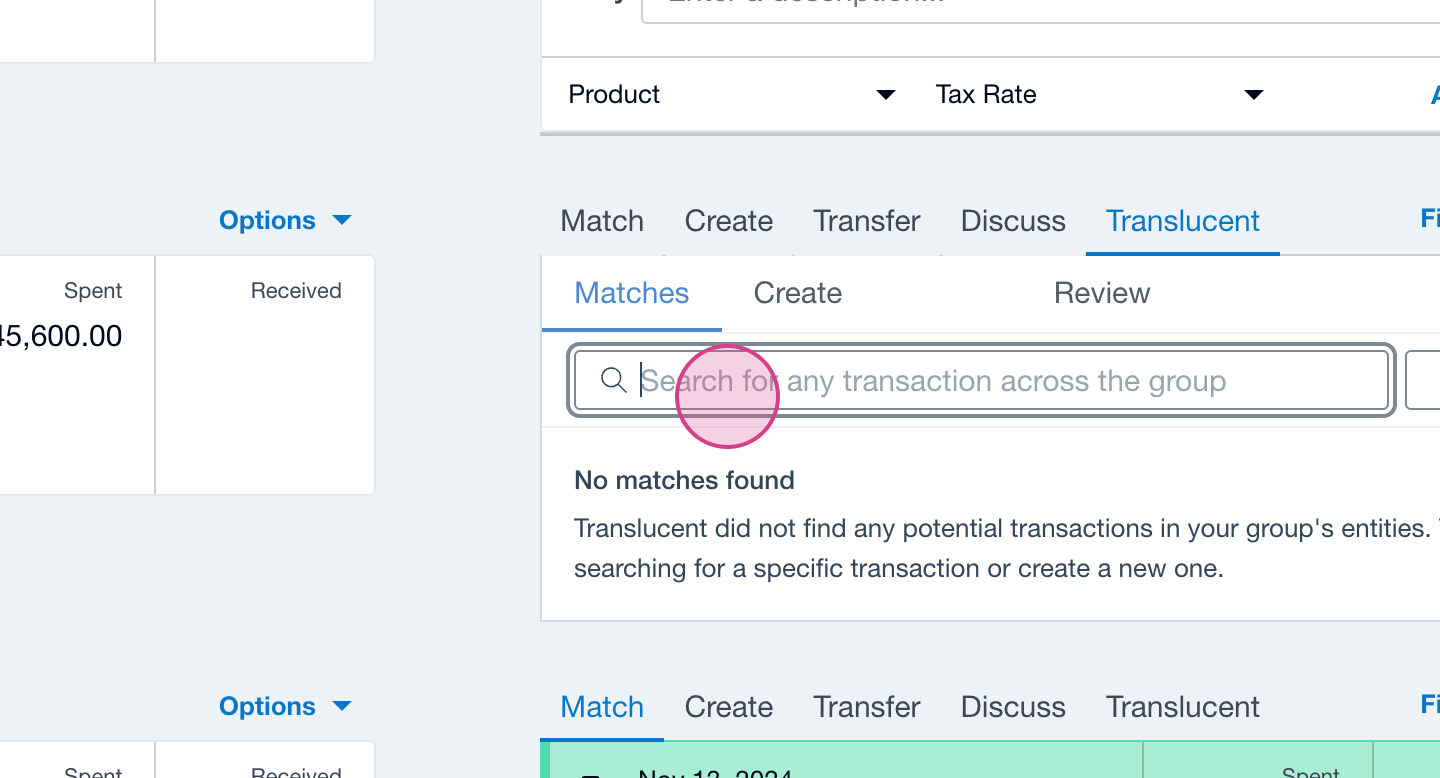
Step 2: Translucent attempts to find the closest matches to the bank statement line. If none of these are correct or if no matches appear, use the search bar to find invoices based on name or reference number.
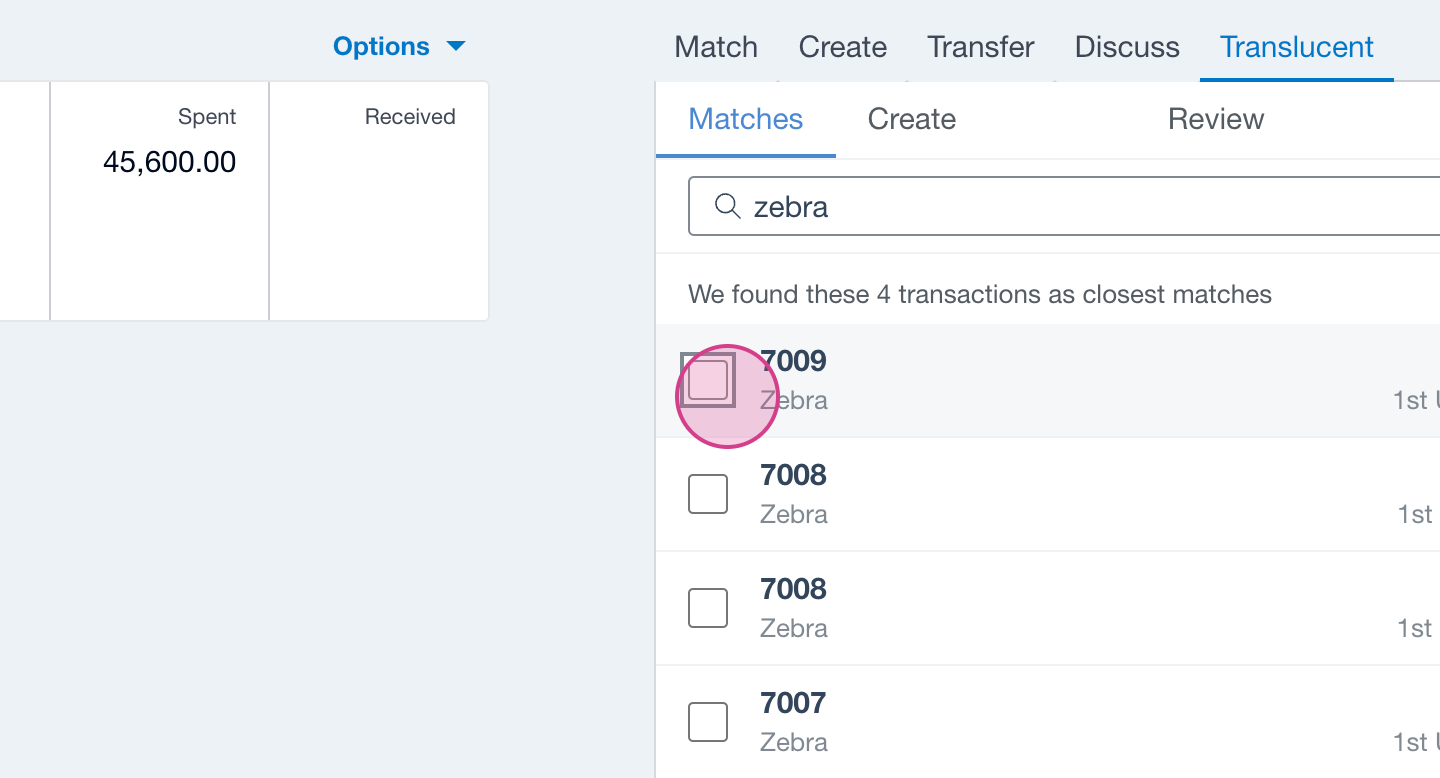
Step 3: Once found, select the transactions you want to reconcile the payment against and select the Review tab.
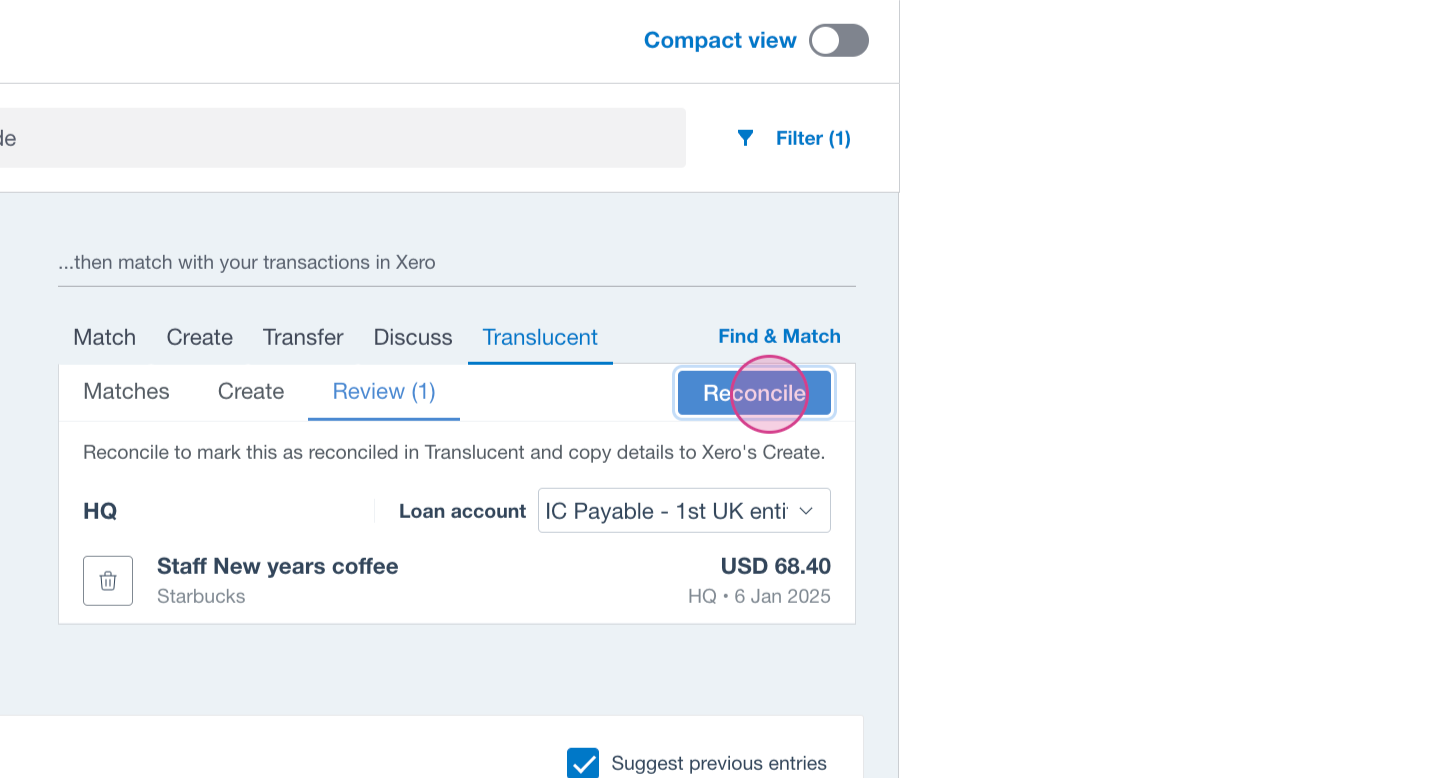
Step 4: After reviewing the transactions and pressing Reconcile, the invoices will be marked off as paid against the Loan Account selected, as mapped within the IC Reconciliation and IC settings page.
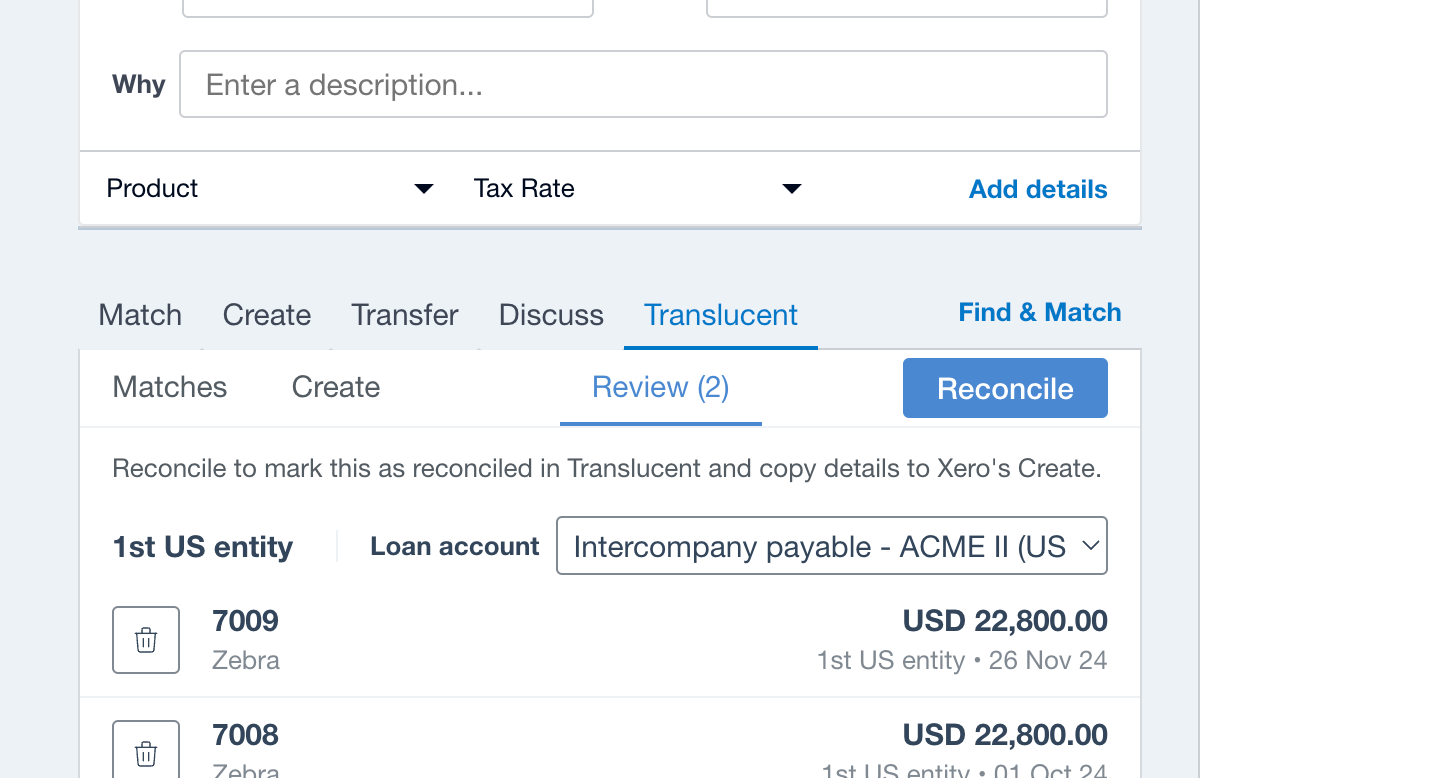
Step 5: This action will take you to Xero's regular Create page, where you can complete the reconciliation.

Task 2 - Creating transactions across the group
Using the Group Bank Reconciliation Create functionality in Translucent allows you to create new transactions within other entities in your group and mark them as paid.
Step 1: Choose the create option
Step 2: Complete the transaction details by adding: the entity, the amount, the contact, the description, and appropriate tax rate
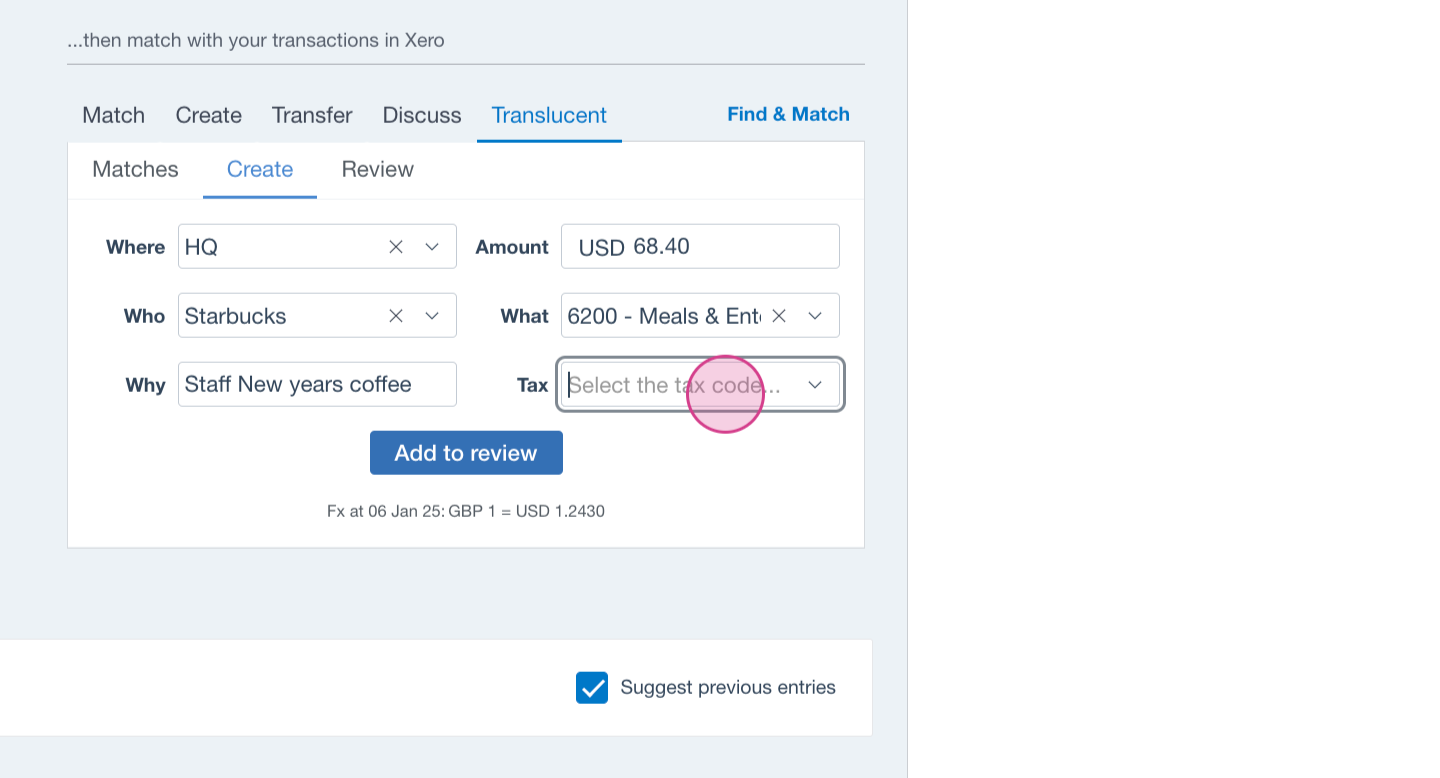
Step 3: Add to review, select the correct Loan Account and press Reconcile