
Set up: Mapping Intercompany Accounts
Set Up Intercompany Mappings in Translucent
Easily manage intercompany relationships in your Translucent account by mapping loan accounts and supplier pairings between entities. This tutorial shows how to set up and edit these mappings using both the matrix view and bulk mapping, so you can accurately track loans and supplier transactions across your group.
Set Up Intercompany Mappings Using the Matrix
The intercompany loan matrix and AR/AP matrix let you visualise and manage loan and supplier relationships for all your entities.
Step 1: Open the Intercompany Loan Matrix or AR/AP Matrix in your Translucent account.
Step 2: Look for grey tiles in the matrix - these show which relationships are missing between entities.
Step 3: Click a grey tile to define a new relationship. You’ll see a popup displaying the two entities you’re mapping (e.g. the AU entity and UK entity).
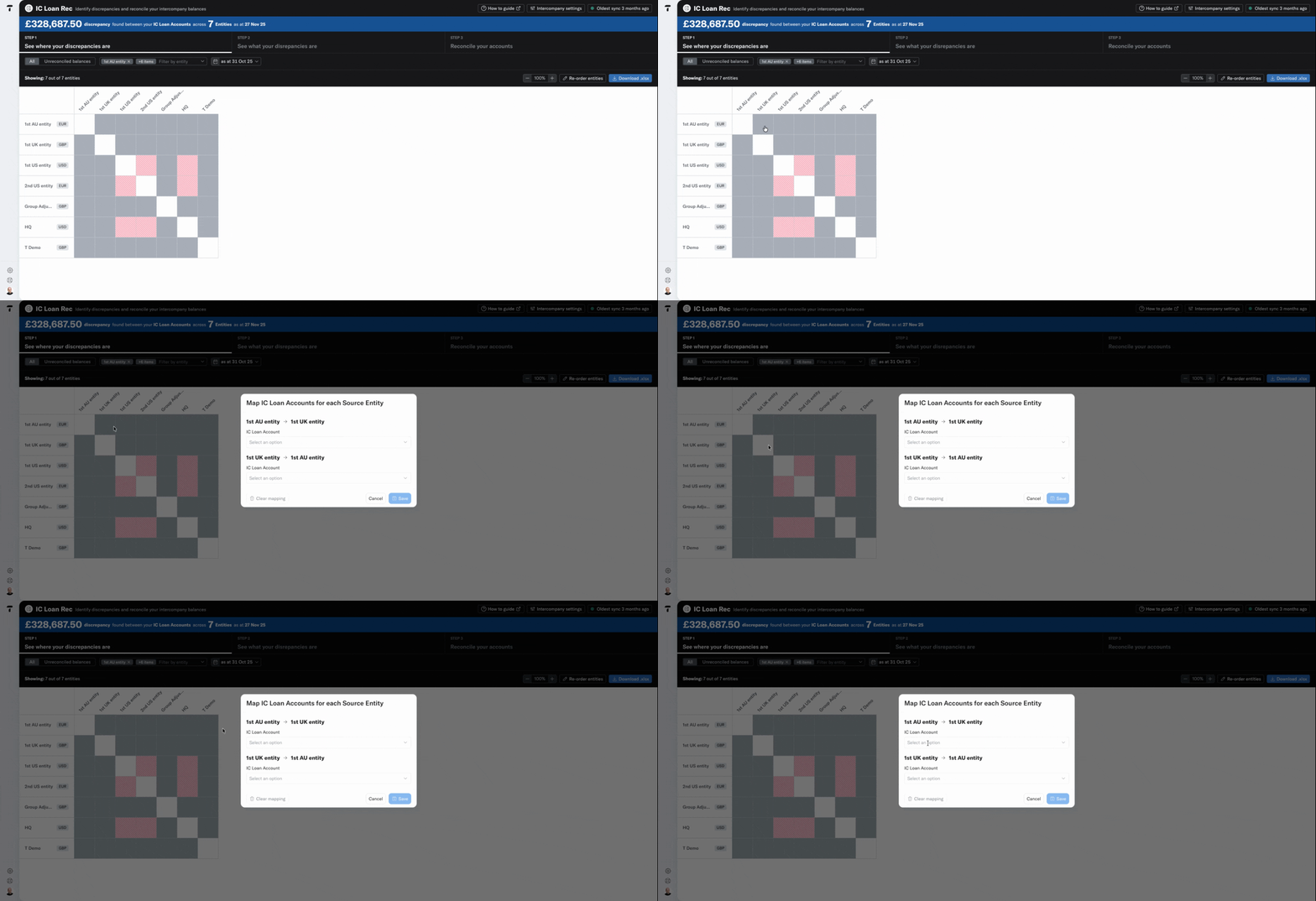
Step 4: Use the dropdown menu in the popup to select the correct loan account for each relationship. When both sides are mapped, click Save to confirm. The tile updates with the new relationship.
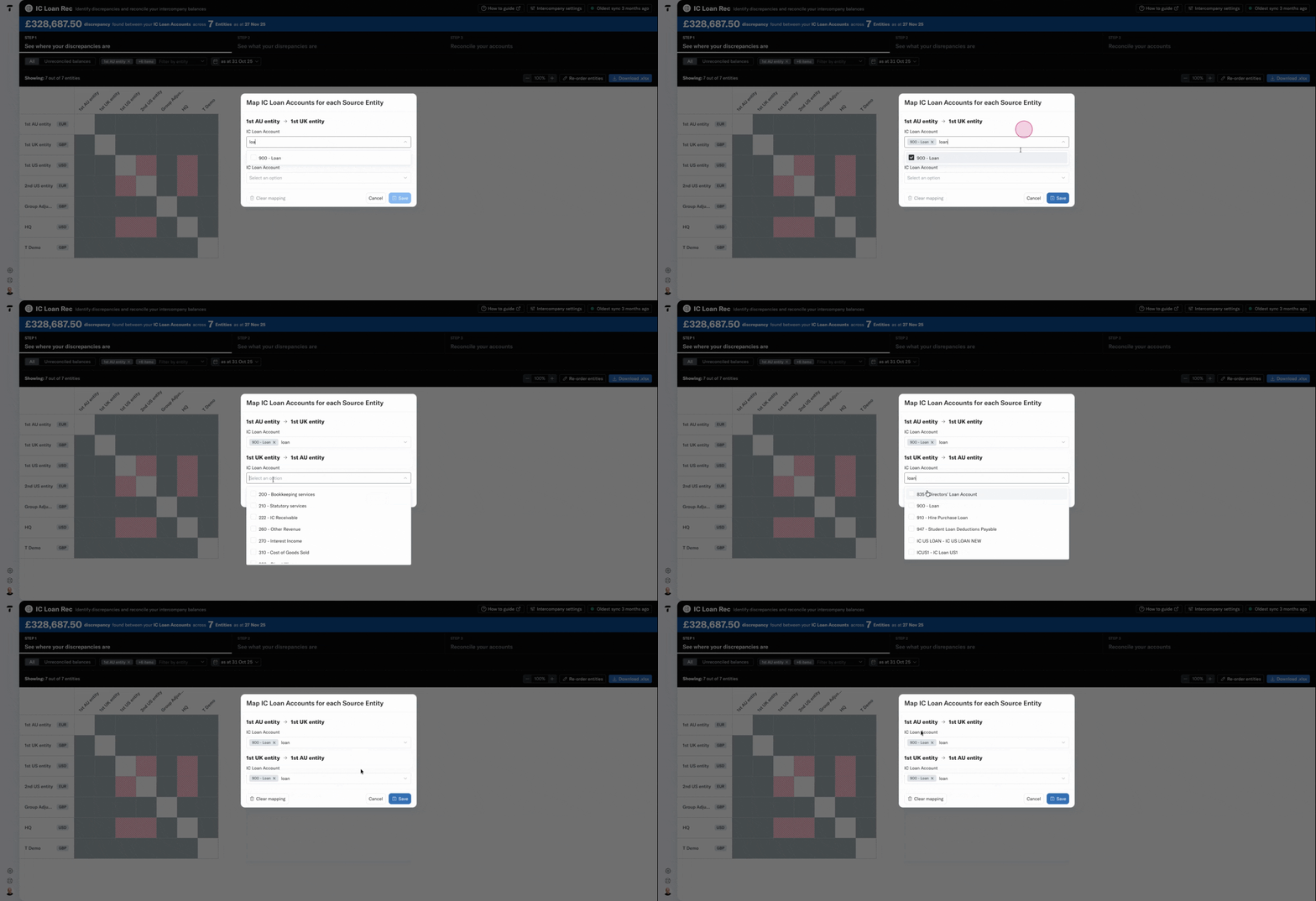
Step 5: To add more relationships, repeat this process: click the next grey tile, select accounts, and save.
The same matrix process works for AR/AP; using counterparties/suppliers instead of loan accounts.
Bulk Mapping via Intercompany Accounts
Tackle multiple relationships at once from the intercompany accounts section. Bulk mapping accelerates setup for large groups and complex structures.
Step 1: Go to your Intercompany Account section.
Step 2: Choose the first where you want to manage or update relationships.
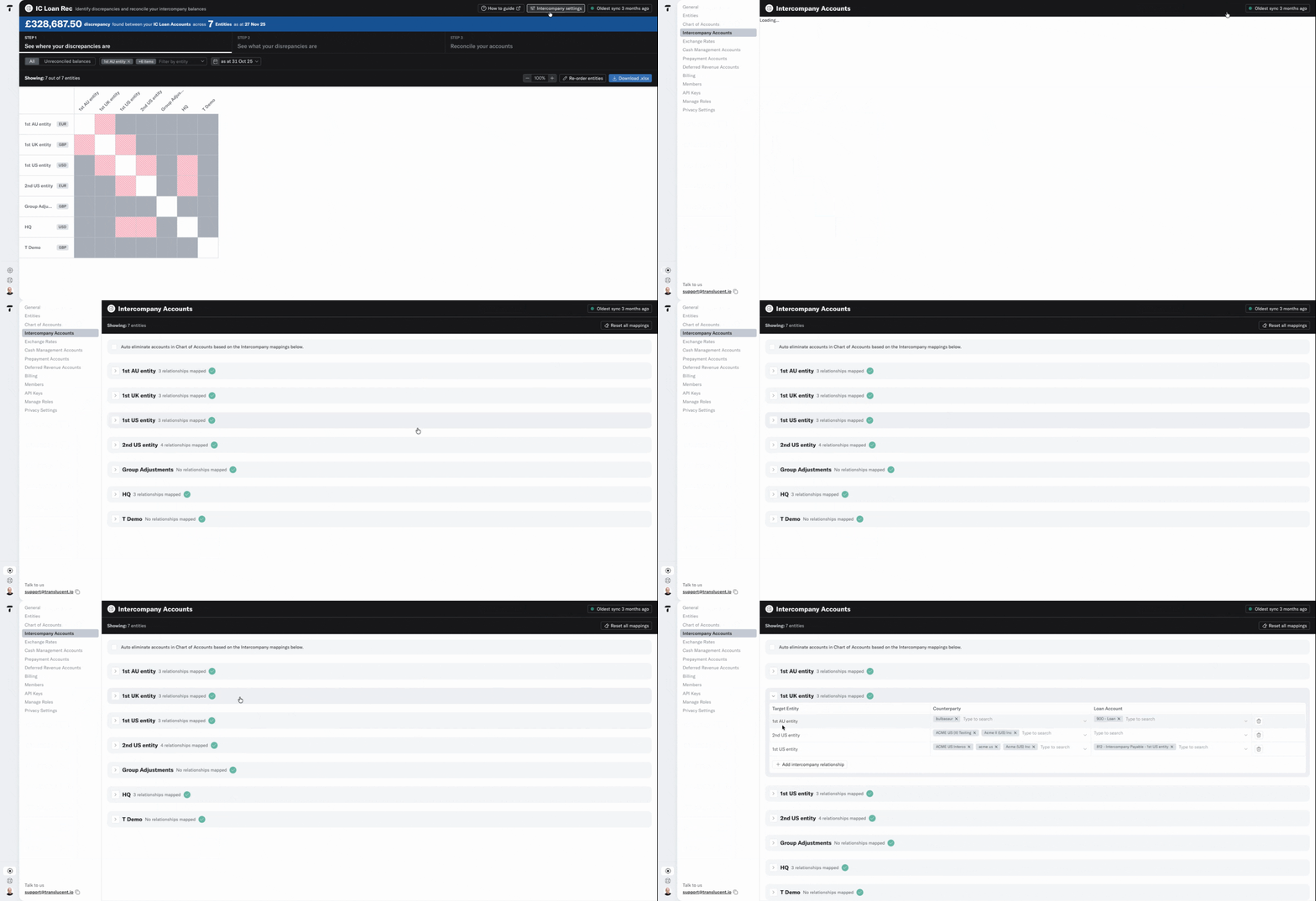
Step 3: Review current relationships and then use the Add Intercompany Relationship option set up new pairings.
Step 4: Select the entity to link with, entering the correct loan account in both directions, and add counterparties when needed.
Step 5: Make sure you click Save to add this relationship and save all new mappings.